Setting Up Control Number Hacienda for Puerto Rico

Setting Up Control Number Hacienda for Puerto Rico

Overview

To set up integration with Puerto Rico Control Number:

  1. Set up your Dejavoo credit card terminal with enabled Hacienda Integration on iPOSpays. Click here for instructions
  2. Select Puerto Rico as store's country 
  3. Add Puerto Rico City and State tax to store
  4. eHopper will request Control # for all transactions

Requirements

  • Must be a Freedom Package customer. 


Instructions

  1. Go to Store Settings → Payment tab
  2. Set the Payment Gateway to Dejavoo
  3. Make sure the store Country is set to Puerto Rico (PR)
  4. Check the "Enable Control Number" checkbox and save


5. Add Puerto Rico City and State Tax to Store
Go to Settings---->Tax Manager in the left navigation menu. 
If it doesn't exist already, create a new tax by tapping the New Tax button on the top right of the screen. If you would like to select an existing tax, click on the tax you would like to add for Puerto Rico.
  • Note: You cannot set up more than two taxes per store in Puerto Rico or you will not receive a control number for placed orders.

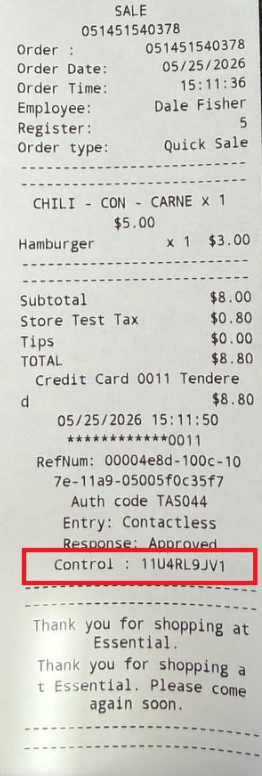
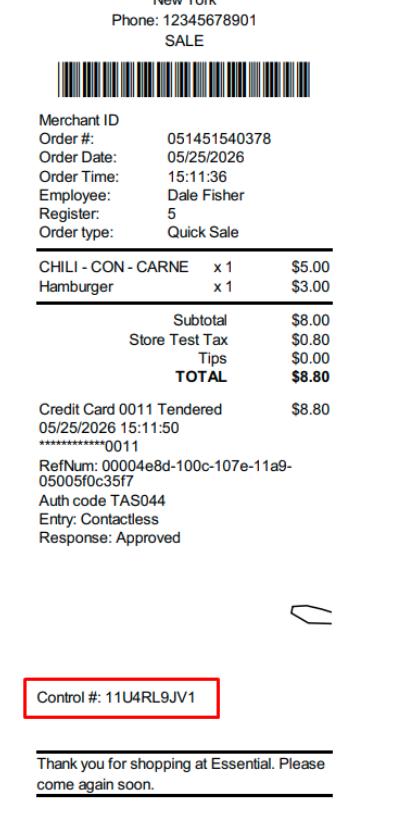
6. We receive a unique Control # (Hacienda number) from Dejavoo for each card transaction and display it on the receipt, in the order details, and within the transaction report.
A single order may contain multiple Control #s (Hacienda numbers), as a separate unique Control # is generated for each card transaction type, including credit card payments, debit payments, refunds, and voids.
    • Related Articles

    • Setting Up Terminal on POS

      Overview You can process credit card transactions with either Pax, Dejavoo or Poynt terminals.  You have to first set up the terminal in Back Office. For Pax, you have to add terminal's serial number in POS. For Dejavoo it would be Register ID and ...
    • Print Customer Phone Number on Order Receipt

      Overview Have a quicker and more efficient ordering process with the option to display a customer's phone number on their order receipt, so you can quickly call the customer once his order is ready. Instructions 1. Log in to Back Office and go to ...
    • Setting Up Printers in POS

      Overview You can use receipt/kitchen printers with Android, iPad, Windows, and Poynt devices with RetailTime app.   Instructions 1. Log in to POS and in the left navigation menu, go to Settings--->Printer Setup.   2. Click Search for printer on the ...
    • Setting Up QuickBooks with RetailTime

      Overview RetailTime POS can be integrated with QuickBooks Online. This allows users to automatically synchronize their sales, inventory, and revenue data with your QuickBooks Plus account, eliminating the need for users to manually input data from ...
    • Setting Up Cash Drawers on POS

      Overview You can set up cash drawers on POS with Windows, iPad, Android, or Poynt devices. You have to first connect the cash drawer to a working printer.   Prerequisites 1. The cash drawer and printer you are connecting it to must be compatible with ...